Muni-Link & MuniciPAY
Internal Office Walk Info & Walk Through
NOTES: Receipt & Reminder Emails are generated by Autoagent's MuniciPAY and can be found in your MuniciPAY logs & reporting. These are separate from and in addition to any emails the Muni-Link Portal may send regarding specific bills, usage, etc for payers.
How does it work?
In the background, Muni-Link & MuniciPAY APIs are communicating. When a bill is generated in Muni-Link, posted, and a due date is set - MuniciPAY receives an update through that communication. When the balance is due for a given bill, is checked and adjusted through this back & forth a second time prior to the due date to ensure the amount billed, on the due date, is correct and up to date.
Following these successful autopayment's completion, the information is posted back to Muni-Link to mark the bill as paid, just like one-time payments.
Managing Portal Enrollments & In Office (Legacy) Enrollments:
- Log in to your Autoagent/MuniciPAY Account
- Navigate to the Payers tab in the Main Menu (top - across)
- From the dropdown menu, select Automated Items (Partner Portal)
When you land on the Partner Portal, you'll find this is where you can review Automated Items that have enrolled via your payers online in their AuthorityPay portal.
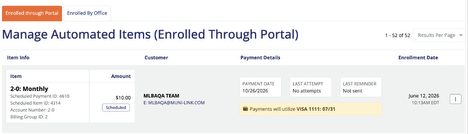
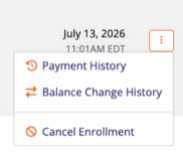
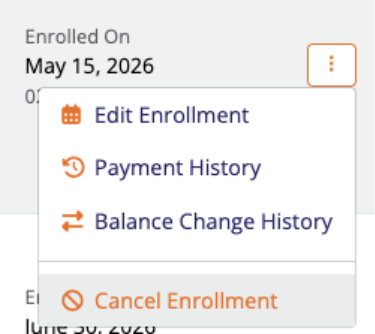
You'll also be able to view Payment History, Balance Change History, and Cancel Enrollments using the button at the end of each entry with 3-dots on the right side.
"Enrolled By Office"
Notice, a second tab available for "Enrolled By Office." Clicking on this option will allow internal clerks to create AutoPayments for customers, instead of routing them through the portal-based process detailed earlier. From this screen, you may:
- Create a new Enrollment
- Edit a Due Date (single or bulk)
- Cancel an existing Enrollment
Creating a new "In Office" Enrollment:
Select "Add Enrollment"

2. The "OTC Enrollment" Modal will open - select the appropriate Department/Item (Billing Group.)
- Enter the Muni-Link account number (Typically XXX-X, eg; 123-4) and Billing Group ID (Usually "2" though if you have a larger account - you may notice multiple bill type options.)
NOTE: "Amount" & "Due Date" are only required if both are entered. They can both be left blank. If they are left blank - MuniciPAY will receive a due date and balance due at the next billing cycle posting from Muni-Link.
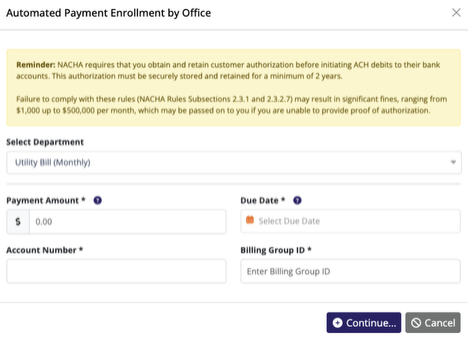
3. Click continue - this will guide you to the next step to add a payment method. Once the billing details have been entered - simply click "Add Payment Method" and it will continue the enrollment process.
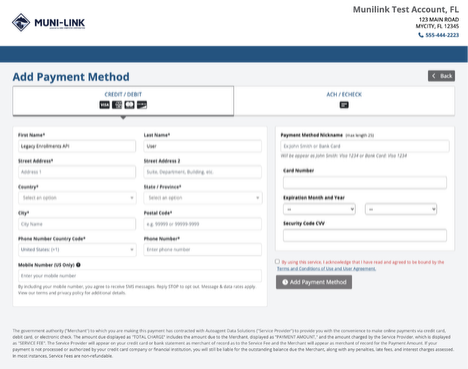
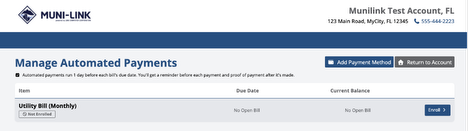
4. Next, you'll land on the "Manage Automated Payments" page for that account.
You must click to Enroll to complete the process.
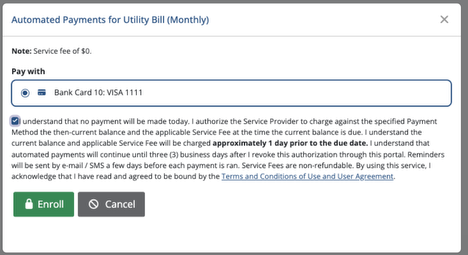
5. After clicking "Enroll" you will be given the option to select the payment method & complete the enrollment. Upon completion, you'll be returned to the MuniciPAY UI.
Edit a Due Date (single or bulk):
You may manually set an alternative Due Date for your "In Office" enrollments.
From the “Enrolled by Office” tab, a user can:
1. Select all (or some) Enrollments, using the checkboxes on the left. Click the "Bulk Update" button. 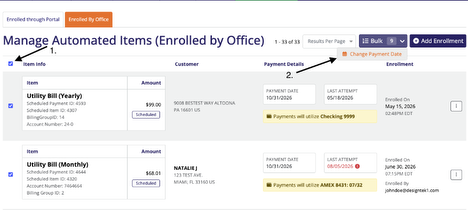
2. Set a new due date for all enrollments in the selection. 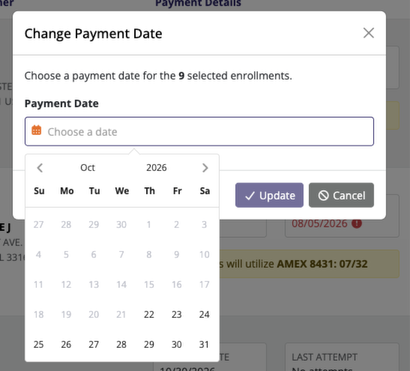
2A. Due dates can also be adjusted on an individual bases using the button at the end of the entry with 3-dots. 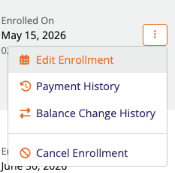
Canceling an “In Office” Enrollment:
Just like a “Portal” enrollment, users can cancel an In Office enrollment from the 3-dot button menu:
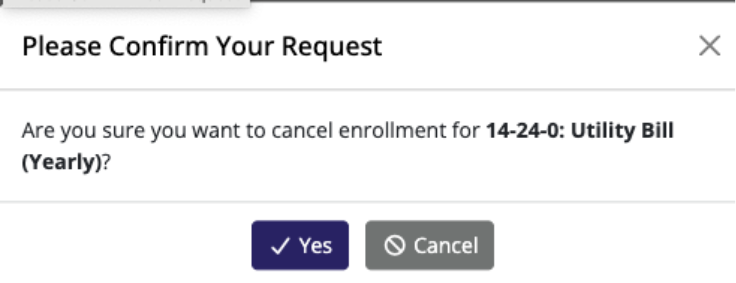
NOTES: An “In Office” enrollment cannot currently have it's banking information updated. If an enrollment needs to be changed - you must first cancel the existing enrollment, and then create a new one with the updating banking information.
Was this article helpful?
That’s Great!
Thank you for your feedback
Sorry! We couldn't be helpful
Thank you for your feedback
Feedback sent
We appreciate your effort and will try to fix the article