We offer automated, scheduled, and recurring payment options for your customers through the MuniciPay platform. In addition, e-billing and address change requests are available features.
Once enabled, customers will have the option to set up these payment types directly through your MuniciPay payment site.
If you would like to enable any of these features, please contact support@municipay.com for assistance.
Accessing Payment Settings
To view and manage payer payment settings:
- Log in to your Autoagent account
- Select the MuniciPay product
- Navigate to the Payers tab
- From the dropdown menu, select the payment type you want to view:
- Automated Items
- Scheduled Items
- Recurring Items
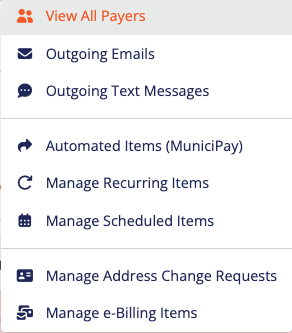
Once selected, the system will display all payers who have that payment type configured.
Viewing and Managing Payment Details
After selecting a payment type, you will see a list of all customer-configured payment items. Each record includes:
- Account details
- Payer contact information
- Payment details (enrollment date, last attempt, last reminder)
- Wallet information (payment method on file)
Available Actions
- Export Results: Generate a report of the listed records

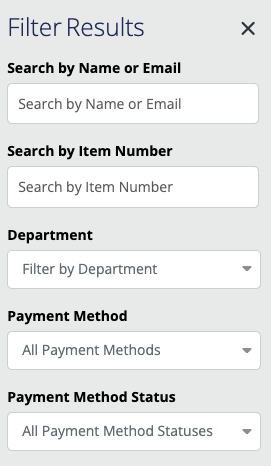
- Filter Results: Use the filter panel on the right to narrow results by available fields
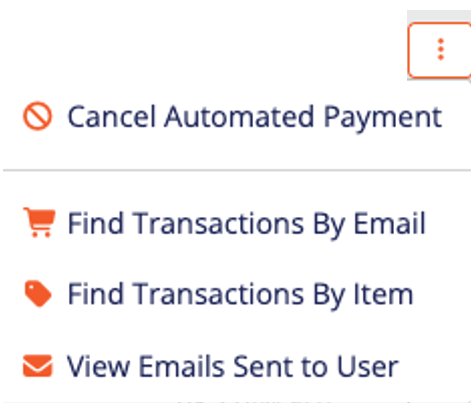
- Additional Options: Click the three dots next to any item to:
- Cancel a payment for that payment type
- Find transactions by email
- Find transactions by item
- View emails sent to the payer
Managing Payer Accounts and Communications
From the Payers tab dropdown, select All Payers to view a complete list of users who have made payments through MuniciPay.
Payer Overview Includes:
- Payer Details (i.e Name, address, phone number, email address)
- Payment types configured
- Account status
Account Status Definitions:
- Active: The payer has a registered MuniciPay account
- Guest User: The payer has made payments without creating an account
- Inactive: The payer account is no longer active
Actions to Take:
Click the three dots next to a payer to:
- Find transactions by email
- View emails sent to the user
- View recurring payments
- View automated payments
- Deactivate or reactivate the account
Viewing Outgoing Communications
Email Logs
- Navigate to the Payers tab
- Select Outgoing Emails from the dropdown
- View all system-generated emails sent to payers
- Use the three dots next to a record to view emails sent to a specific user
Text Message Logs
- Navigate to the Payers tab
- Select Outgoing Text Messages from the dropdown
- View all SMS communications sent to payers
Was this article helpful?
That’s Great!
Thank you for your feedback
Sorry! We couldn't be helpful
Thank you for your feedback
Feedback sent
We appreciate your effort and will try to fix the article