Accessing Automated Payment Settings
To view and manage payer payment settings:
Log in to your Autoagent account
Select the MuniciPay product
Navigate to the Payers tab
From the dropdown menu, select Automated Items (Partner Portal)
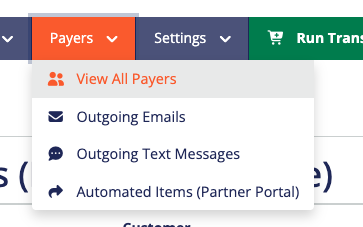
Once selected, the system will display the available automated payment enrollments.
Viewing and Managing Payment Details
After selecting Automated Payments, you will see two tabs:
- Enrolled By Office – Displays automated payment enrollments created by office staff on behalf of an individual payer.
- Enrolled Through Portal – Displays enrollments created through the API and associated with individual user accounts. These enrollments are initiated from a partner or vendor website, where the user is redirected to MuniciPay to complete the enrollment. Individual payers can log in to their account at any time to view, update, or cancel their own automated payment enrollments.
Select the appropriate tab to view the desired enrollments. A list of all customers enrolled in automated payments for that category will be displayed.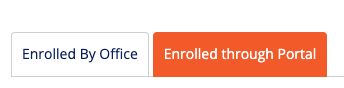
Each record includes:
- Account details
- Payer contact information
- Payment details (enrollment date, last attempt, last reminder)
- Wallet information (payment method on file)
Available Actions
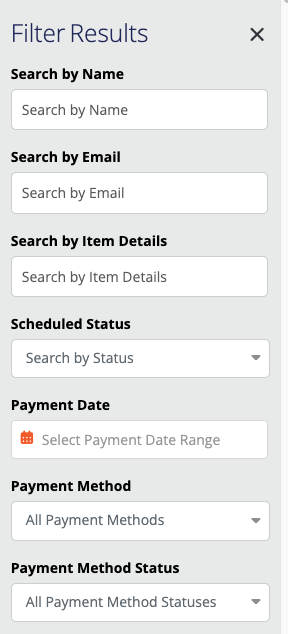
- Filter Results: Use the filter panel on the right to narrow results by available fields
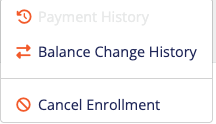
- Additional Options: Click the three dots next to any item to:
- View Balance Change History
- Cancel Enrollment
Was this article helpful?
That’s Great!
Thank you for your feedback
Sorry! We couldn't be helpful
Thank you for your feedback
Feedback sent
We appreciate your effort and will try to fix the article