Step 1: Navigate to the designated platform where payment searches are conducted.
Existing Account - Login:
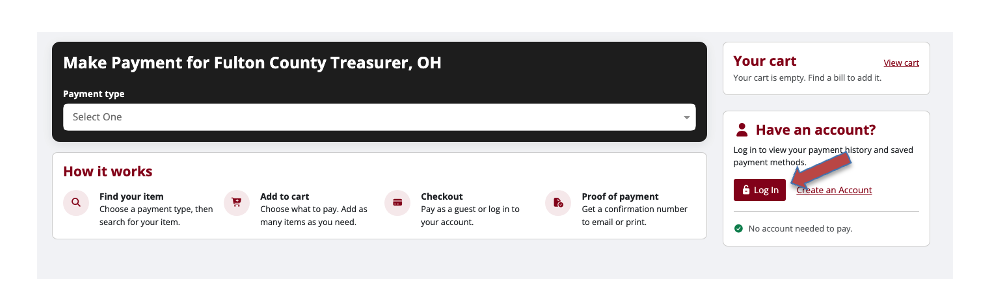
If you have an existing account and wish to sign into your account, click on the "Log In" button.
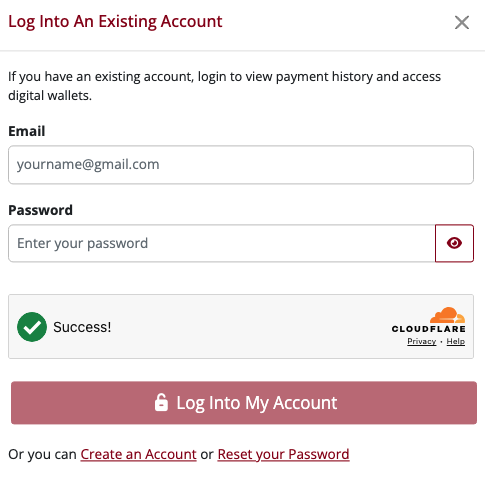
Enter your email address and password then click Log Into My Account.
Once logged in, proceed to Step 2.
Create Account:
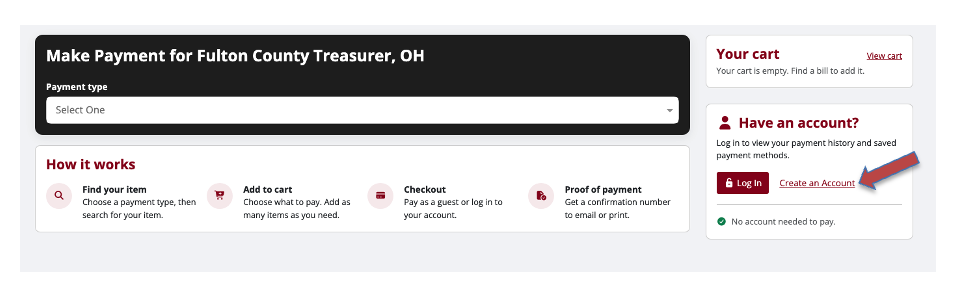
If you do not have an account and would like to create one, click on the "Create an Account" button.
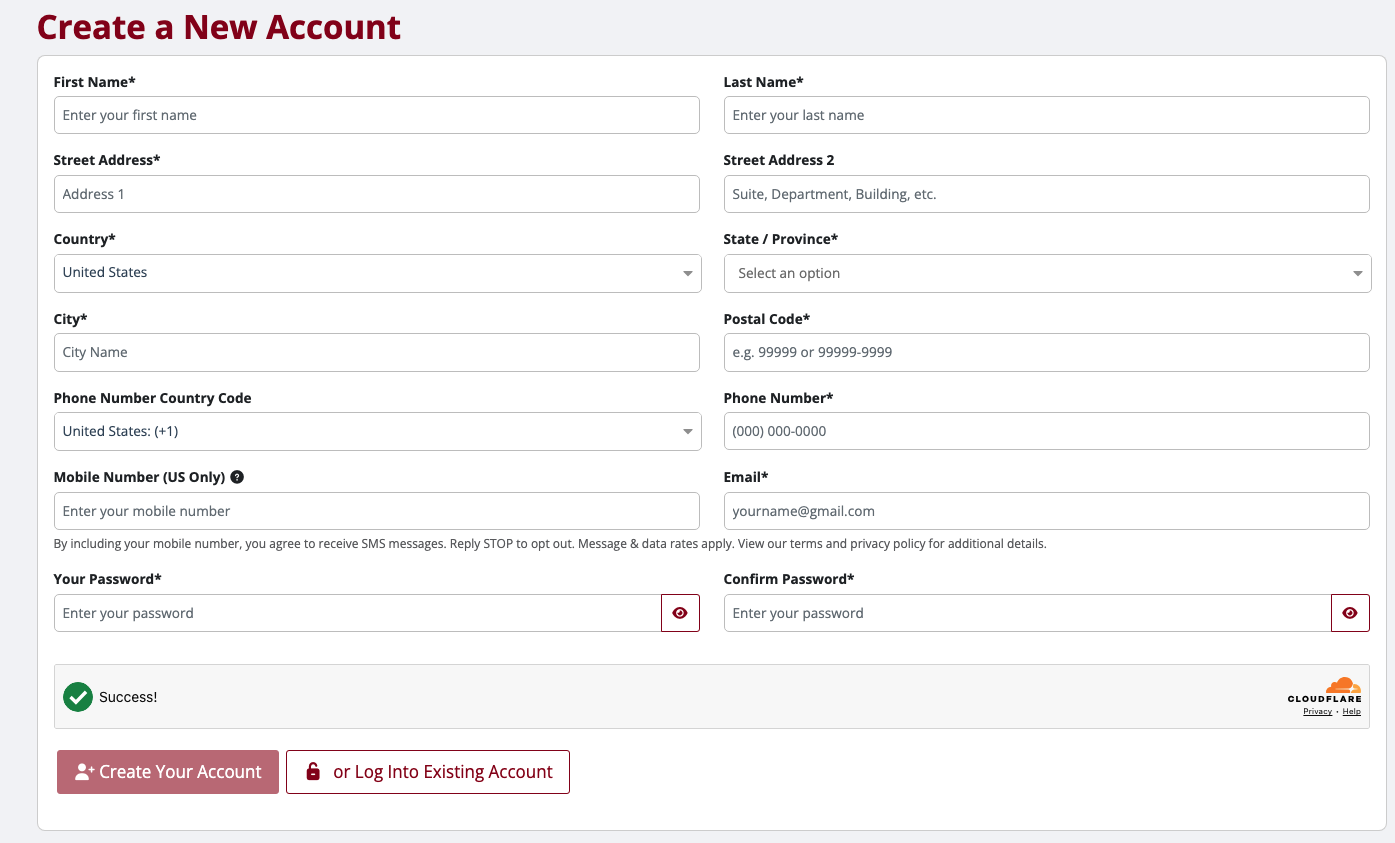
Complete the required fields (*). Then click Create Your Account.
After account created and you are logged in, proceed to Step 2.
Guest Checkout:
If you prefer not to use an account and would like to make a payment as a guest, continue to Step 2.
Step 2: From the menu, choose the payment type and search for the item you wish to pay from the search field using the required search method(s).
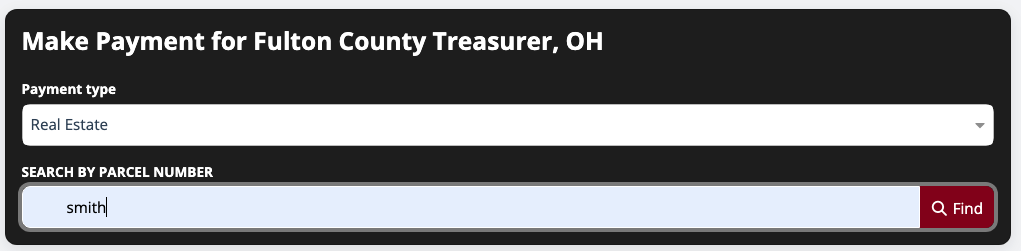
Step 3: Adding Item to your Cart
Click "Pay" which will add the item to your cart.

To add additional items to your cart, repeat step 2.
Existing Account:
If you are logged in to an existing account, you will be prompted to confirm your password.
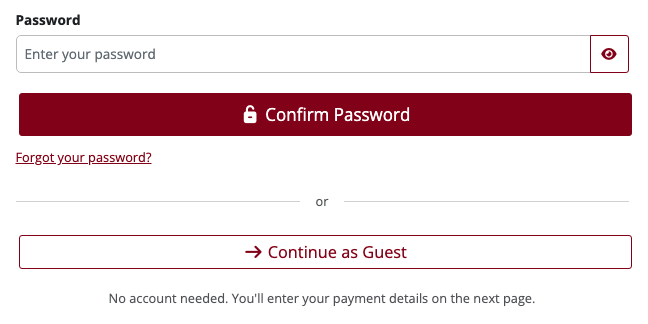
Guest Checkout:
If you are paying as a guest, click "Continue as Guest".

Step 4: Choose Your Payment Method
Two options are available to complete the transaction: Credit or Debit card or Bank account (ACH). Click on your preferred payment method to add your payment details.
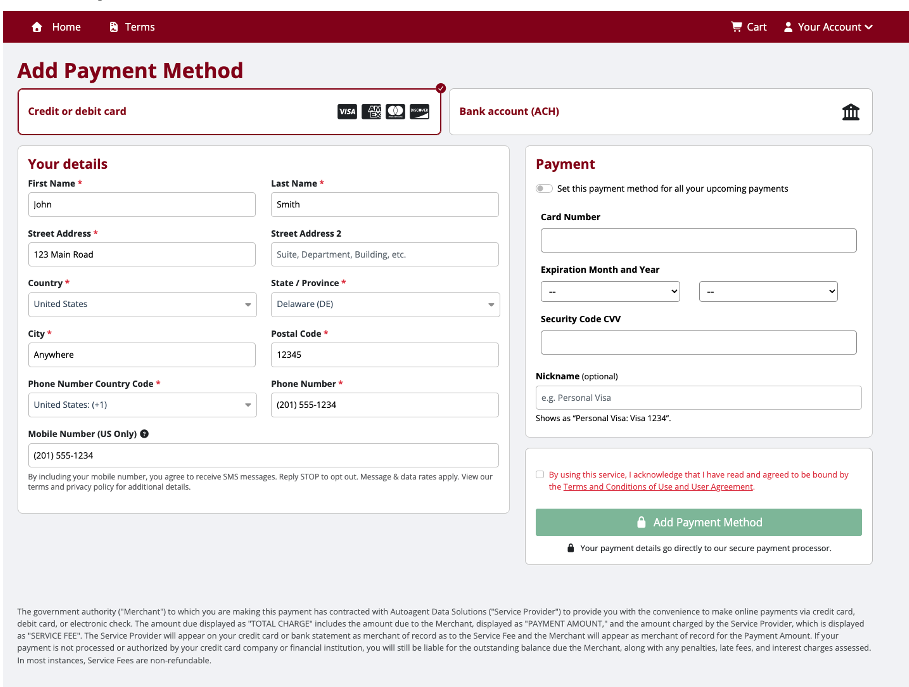
If you are logged in and have an existing payment method stored, choose your stored payment method from the dropdown or you can add a new payment method.
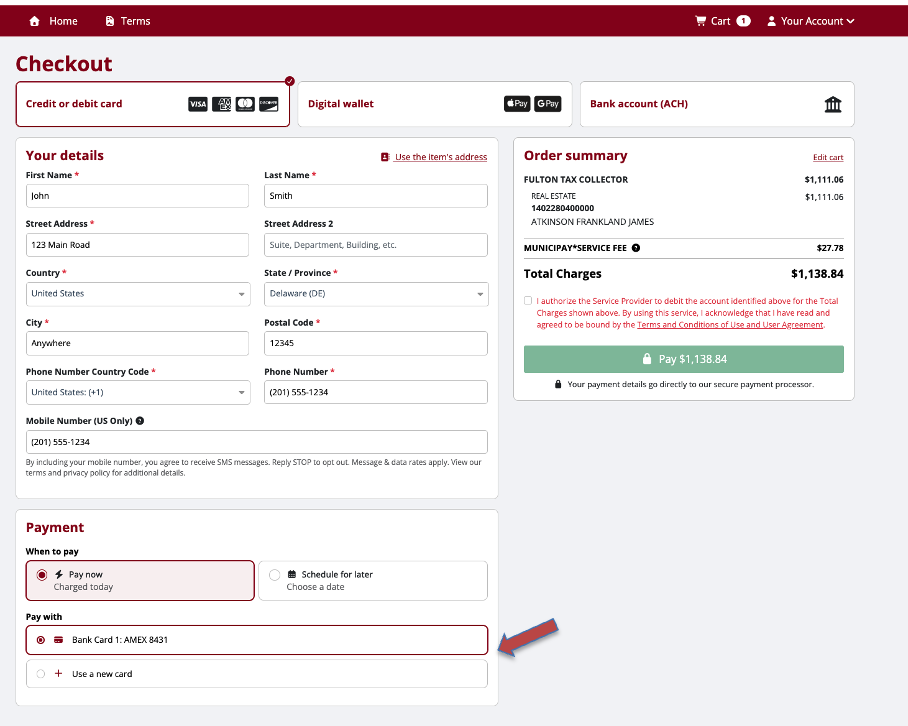
Credit/Debit Card
If paying with a credit/debit card, enter your cards details, expiration month and year, and the 3 digit security code (CVV) from the back of your card.
*Note: If you are using an American Express card, the CVV code can be found on the front of your card and is usually a 4 digit number.
*Note: If you are not using guest check out, you will be provided the option to save your payment method to your wallet.
Bank Account
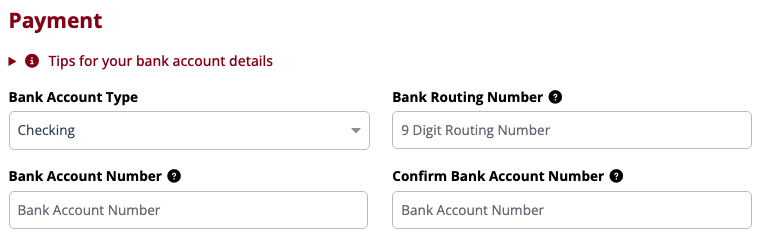
If paying by bank account, select bank account type from the dropdown, enter your bank routing number, and bank account number.
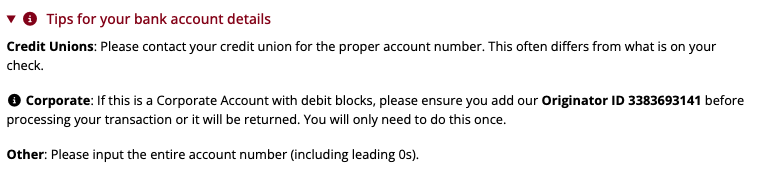
*Note: Please review important tips for bank accounts by clicking on the tool tip.

*Note: If you are not using guest check out, you will be provided the option to save your payment method to your wallet.
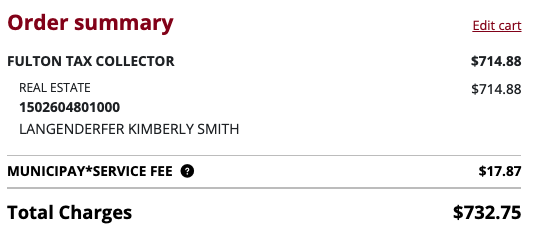
Once you've completed the information on the left-hand side, review the Order Summary box on the right which will display the transaction amount along with the service fee.
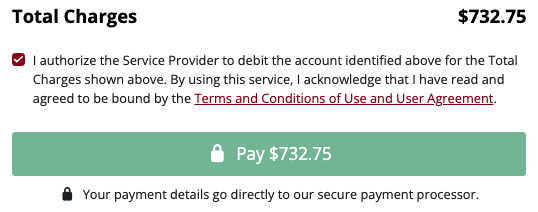
Once you have reviewed the Order Summary box, check the box to confirm you have reviewed the service fee amount and authorize the Service Provider to debit your account for the total Charges shown above.

Step 6: Complete Transaction
To complete your payment, click on the Pay button.
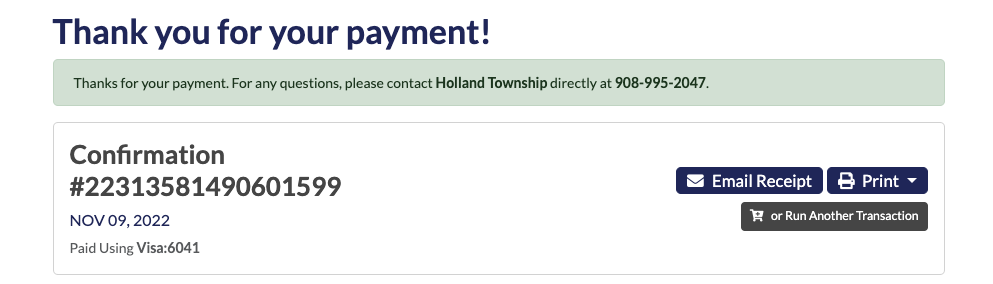
The system will provide a confirmation once the transaction is complete.
Was this article helpful?
That’s Great!
Thank you for your feedback
Sorry! We couldn't be helpful
Thank you for your feedback
Feedback sent
We appreciate your effort and will try to fix the article