Log into your account. If you do not already have an account, you will need to create a new account.
An account may be created immediately upon arriving to the site clicking the “Login to Your Account” button on the navigation bar. Then clicking "Create New Account".
Alternatively, you can search for your item and you will be prompted to login and create a new account before setting up a recurring payment.
How to start setup process
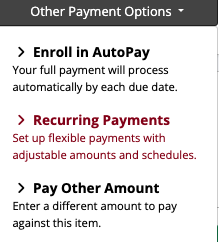
After you have found the item you wish to pay, click “Other Payment Options”. In the dropdown, select “Recurring Payments”.
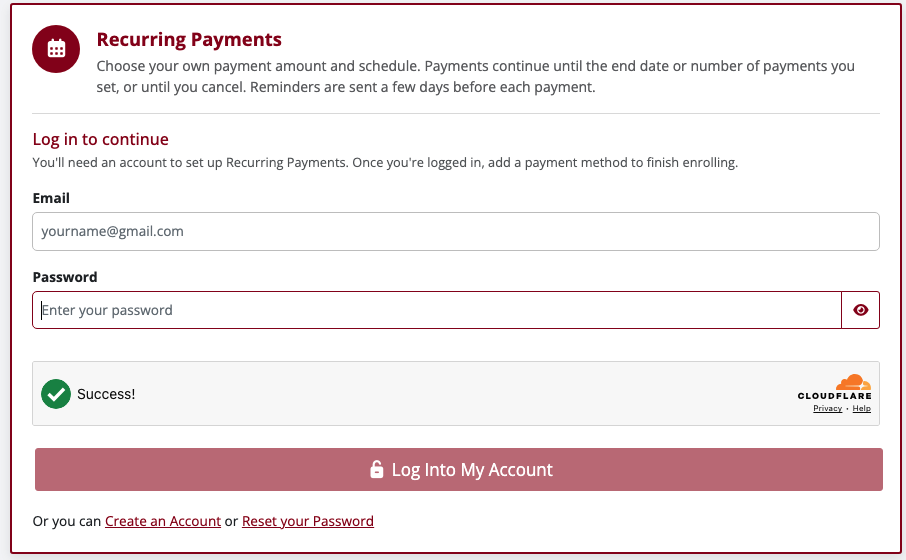
If you receive the following prompt after clicking “Recurring Payments", you have not logged in.
You will need to log in or click on “Create an Account” to set up an account.
Setup the Recurring Payment
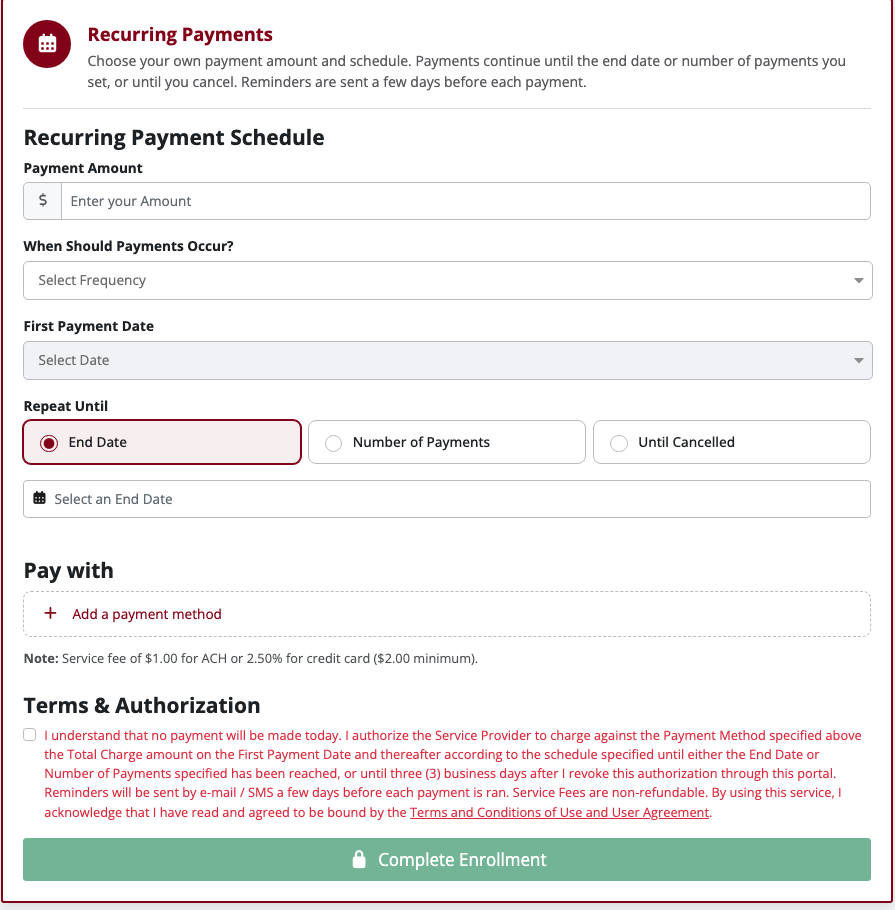
The setup page contains the item information as well as a form to schedule both the number of payments, the frequency of the payments, and the amount to pay.
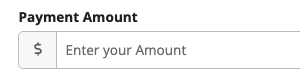
Step 1: Enter the payment amount
Step 2: Select the frequency of the payment
A payment can occur weekly, every 2 weeks, monthly on a specific date (ex: 1st of the month), and monthly on a specific day (ex: 2nd Friday of the month)
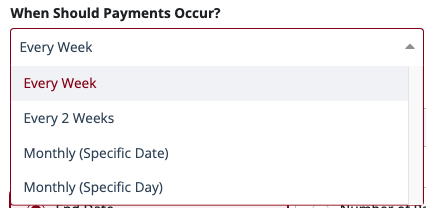
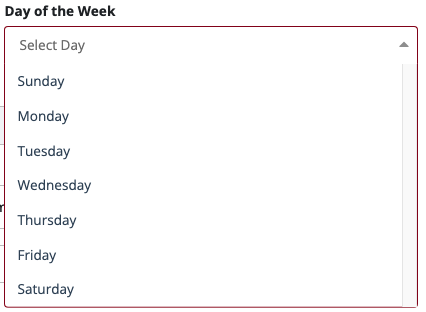
After selecting when payments should occur, the day of week/month field will display. Select from the dropdown the desired day.
Step 3: Select when the recurring payment will end
Select the First Payment Date from the dropdown.

Select either End Date to provide an end date for payments, Number of Payments to provide number of payments should occur, or Until Cancelled which will debit payments until it is cancelled.

Step 4: Select the payment method
The final step requires selecting a payment method. You can use a payment method that has already been saved. However, if you are setting up a new payment method, click “Add a payment method”.

If you choose to add a new payment method, you will be directed to the following page, where you can select between credit / debit cards or bank account (ACH) options. The payment method nickname is an optional field to help differentiate between your payment methods.
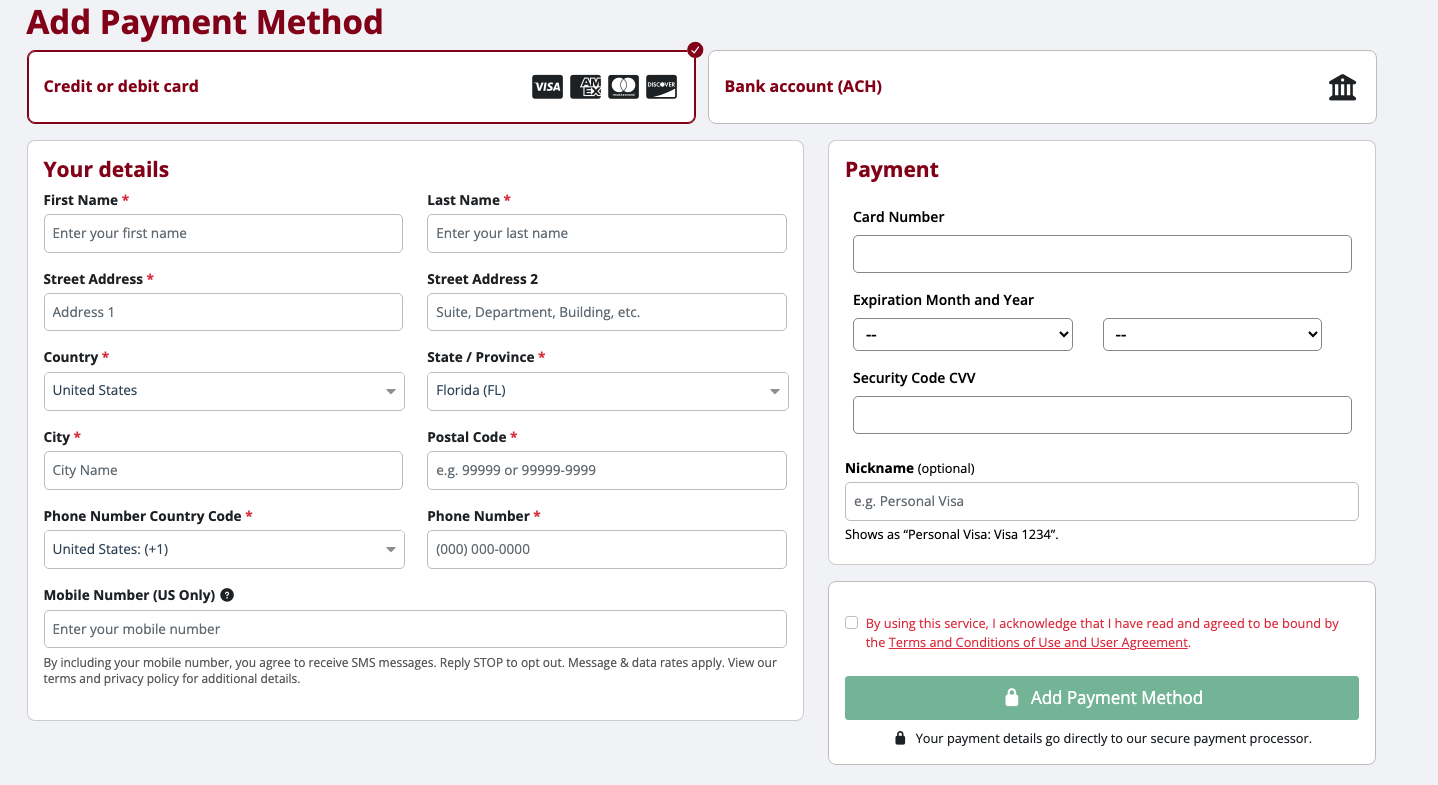
Once a payment method is added, you will be directed back to the recurring payment setup form.
Once back on the setup form, the newly added payment method will be pre-selected. After clicking the Terms & Authorization box, click "Complete Enrollment."
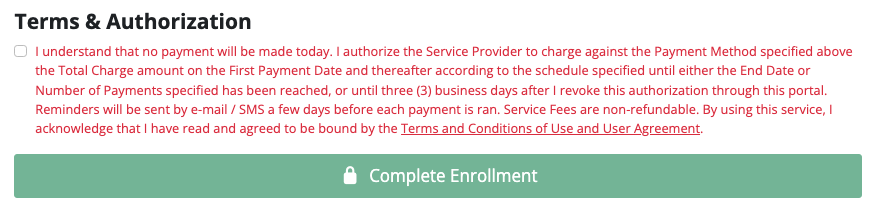
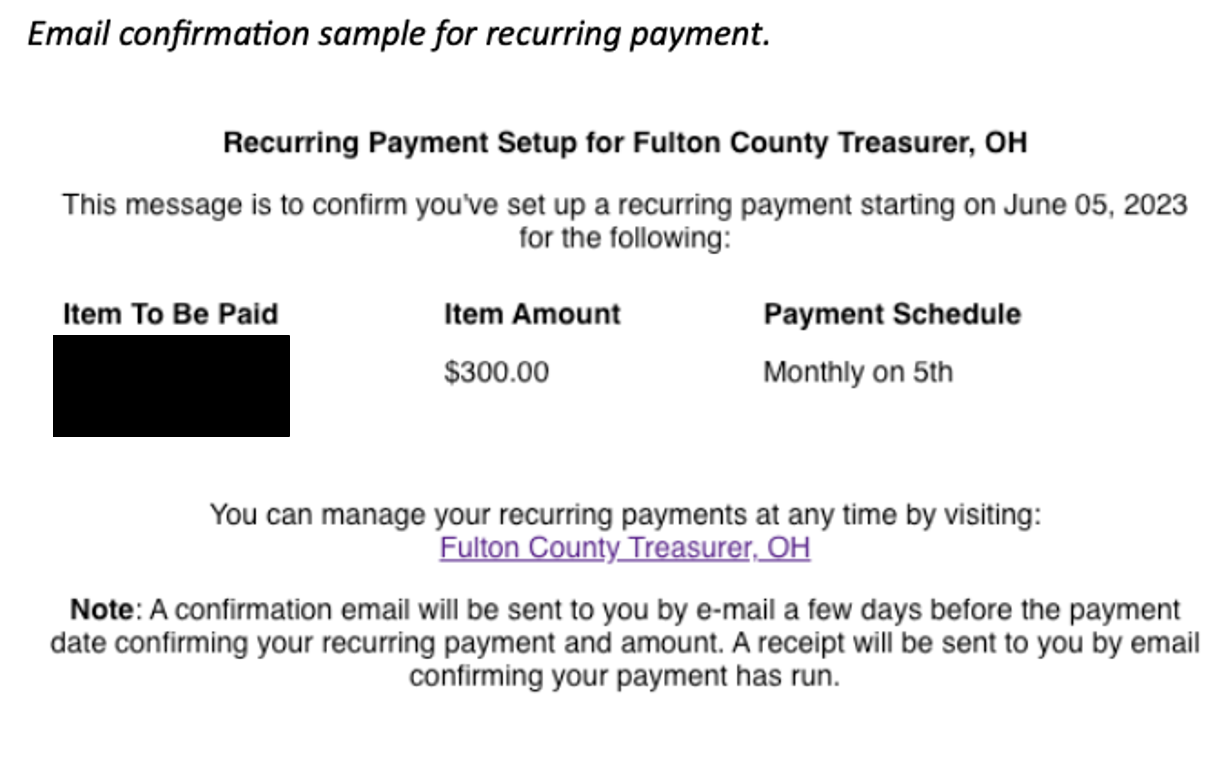
Once complete, an email confirmation will be sent to you confirming the setup.
Was this article helpful?
That’s Great!
Thank you for your feedback
Sorry! We couldn't be helpful
Thank you for your feedback
Feedback sent
We appreciate your effort and will try to fix the article