Overview
This feature allows over-the-counter (OTC) transactions to display the customer’s signature on a printable receipt.
Supported Devices
- Individual EMV terminals that support signature capture, such as Clover and Lane devices, can use this option.
- Note: The signature display feature is specific to the printable receipt from the system; signatures do not print on the physical device receipt from Clover.
How It Works
- Enable the Display Customer Signature option on the supported terminal.
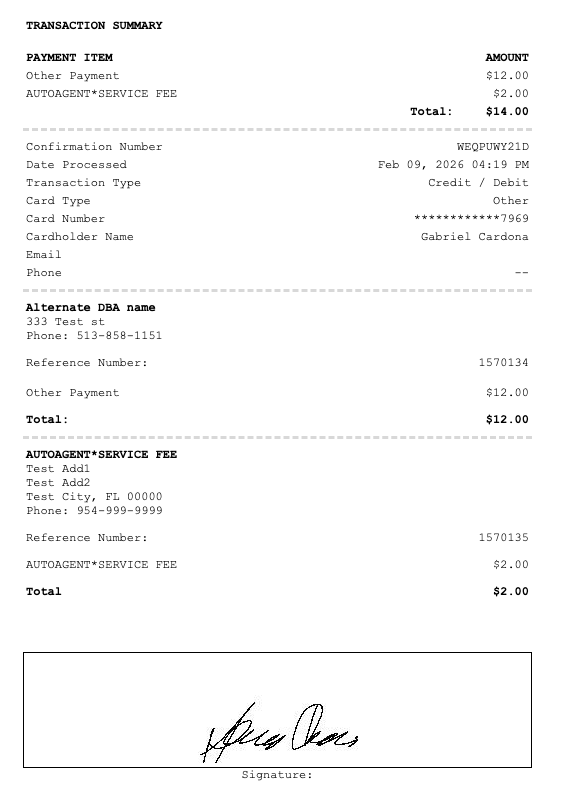
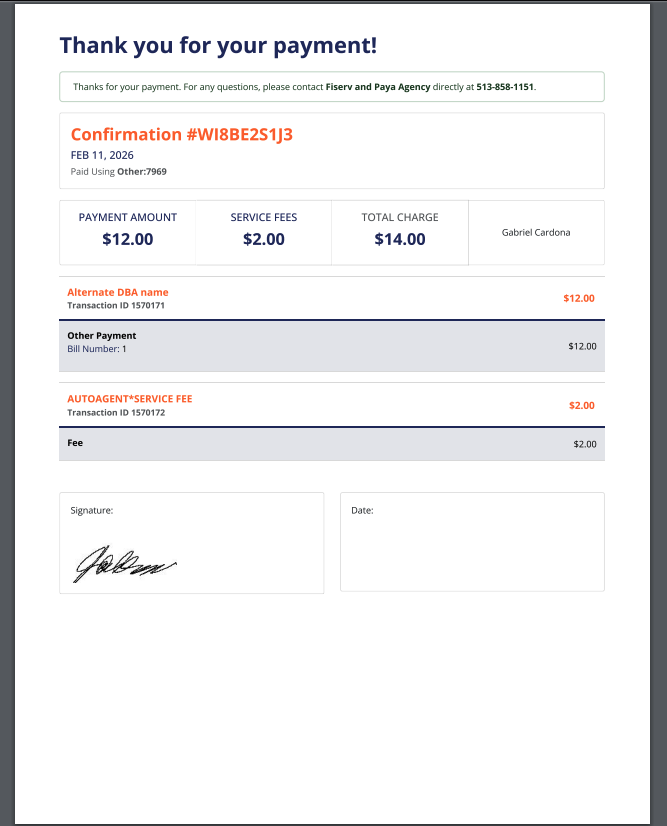
- When completing a transaction, the confirmation page will show the captured signature.
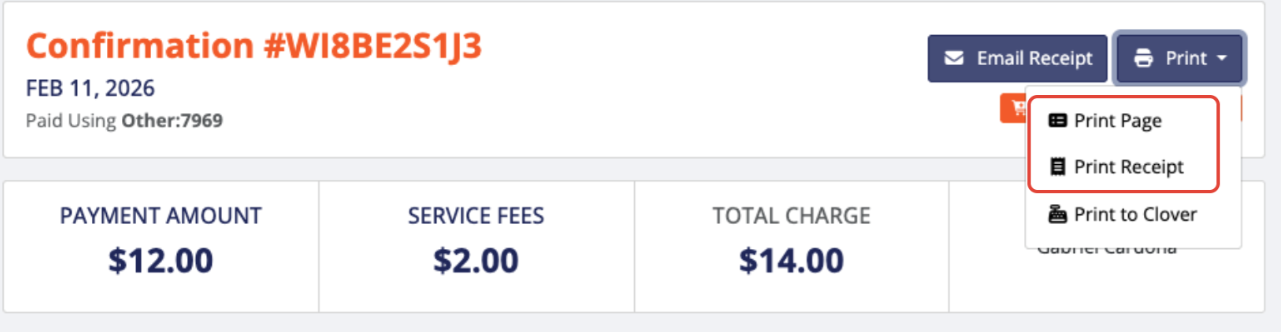
- To view or print the signature:
- Click Print Page or Print Receipt on the confirmation screen.
- The printed receipt from the system will include the customer’s signature.
Important Notes
- The signature will not appear on the printed receipt directly from the Clover device.
- Ensure your terminal supports signature capture before enabling this feature.
Was this article helpful?
That’s Great!
Thank you for your feedback
Sorry! We couldn't be helpful
Thank you for your feedback
Feedback sent
We appreciate your effort and will try to fix the article